Choosing a print-and-cut machine blends printing quality with precise die-cutting for stickers, labels, and crafts. This guide highlights five versatile models suitable for hobbyists and small studios, covering built-in scanners, inkjet print-then-cut support, AI cutting, and big-format capabilities. Below is a quick table of the featured products to help you compare at a glance.
| Product | Brand | Key Print‑And‑Cut Benefit |
|---|---|---|
| Cricut Joy Xtra | Cricut | Print‑Then‑Cut with 50+ materials |
| Liene PixCut S1 | Liene | All‑in‑One printer and cutter with AI auto-cutting |
| Brother ScanNCut SDX125E | Brother | Built‑in scanner for direct cut from drawings |
| Cricut Explore 4 | Cricut | Smart cutting plus inkjet print‑then‑cut |
| Brother J1800DW | Brother | All‑in‑One with auto cutter for quick label outputs |
Cricut Joy Xtra: Print‑Then‑Cut Precision

The Cricut Joy Xtra is built for compact spaces while delivering robust print-then-cut capability. It works with more than 50 materials, including vinyl, iron-on, and cardstock, enabling a wide range of projects from decals to gift tags. When paired with a home inkjet printer, you can print full-color designs and send them to the Joy Xtra for precise contour cuts. Its precision-oriented blade system and software support intricate patterns, making detailed shapes accessible even in small home studios. This model suits crafters who value portability without sacrificing cut accuracy.
From quick label ideas to seasonal decals, the Joy Xtra prioritizes ease of use with a straightforward setup and compact footprint. It’s a practical starter or secondary station for hobbyists who need reliable, precise cuts without a large machine.
Liene PixCut S1: All‑In‑One Printer And Cutter

All-in-One Convenience defines the Liene PixCut S1. It combines high‑resolution photo printing with precise die cutting in a single device, streamlining workflows for sticker making, custom labels, and gifts. With Bluetooth, you can edit, print, and cut from a smartphone, making it simple to create on the go. The AI auto-cutting feature helps you turn photos into stickers quickly, reducing manual adjustments and setup time. High‑resolution prints at 300 DPI with 16.7 million colors deliver vibrant designs for decals and labels, enhancing professional appeal in a compact package.
The S1’s AI image extraction turns photos into stickers, enabling a quick transformation of memories into projects. This makes it especially appealing for budget-conscious crafters who want professional results without managing multiple devices.
Brother ScanNCut SDX125E: Built‑In Scanner
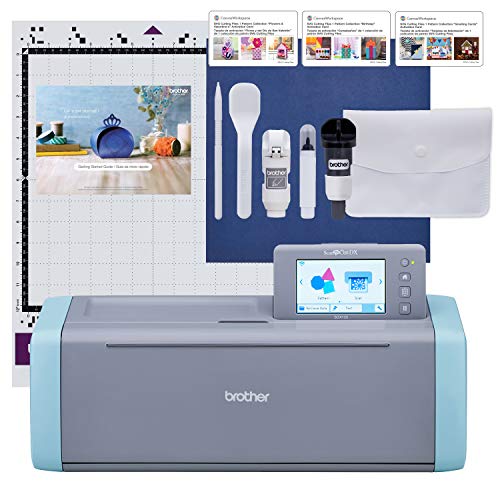
With a built‑in scanner, the Brother ScanNCut SDX125E lets you convert drawings into cut files without separate tracing steps. You can scan your artwork, print printed designs, and instantly cut them with precise alignment. This model includes 682 built-in designs, plus fonts and additional patterns via USB or wireless downloads, enabling diverse DIY projects—from greeting cards to fabric projects. The included ScanNCut DX auto blade and holder use automatic material sensing to adjust to thickness, reducing trial cuts. A 5″ color touchscreen keeps setup intuitive for makers of all levels.
Auto blade technology and a robust library of patterns expand creative options, especially for mixed‑media crafts. The SDX125E is well suited for users who value independent scanning and precise cutting within a single device.
Cricut Explore 4: Smart Cutting And Print

Explore 4 blends powerful cutting with color printing via inkjet compatibility. It works with 100+ materials and supports print‑then‑cut to produce full‑color stickers and labels. In addition to cutting, Explore 4 can draw, foil, and score, expanding the range of craft projects. It’s designed for users who want a versatile machine that grows with their skills, offering a broad matless and mat-based workflow. The device’s integration with Design Space App enables seamless project creation and execution across media types.
Compatible with inkjet printing allows full-color designs for stickers and labels, while its 100+ material capability supports vinyl, iron-on, cardstock, and more. The Explore 4 is marketed for creators who want an all‑in‑one device that can cut, write, foil, and draw, enabling a single-session production line for personalized products.
Brother J1800DW All‑In‑One With Auto Cutter

At the intersection of print, scan, and automatic paper cutting, the Brother J1800DW targets home offices that need routine document handling with built-in cutting. The machine delivers wireless printing, scanning, copying, and faxing, plus an auto cutter that trims letter-sized pages to half size for invitations and labels. The 150-sheet input tray and 20-page ADF help maintain productivity, while duplex printing saves time and paper. This model suits users who want a compact all‑in‑one with integrated cutting for quick, labeled outputs.
While primarily a printer, its cutting capability adds a practical edge for label creation and simple crafts. The J1800DW’s wireless printing and mobile printing options make it suitable for small offices and busy homes seeking an affordable, multi‑use device.
Buying Guide
Print‑Then‑Cut Capabilities
Look for devices that explicitly support print‑then‑cut workflows. The ability to print high‑quality designs with an integrated cutter or to send printed media for contour cutting directly influences project flexibility. Consider the accuracy of cut lines, supported media widths, and the ease of aligning print and cut data within the companion software.
Scanner Versus Inkjet Integration
Some machines rely on a built‑in scanner to convert drawings into cut files, while others depend on an inkjet printer for color printing and then cut through software integration. A built‑in scanner is valuable for turning hand‑drawn designs into cut files without external scanners, whereas a printer‑based model emphasizes color fidelity and photo printing alongside cutting.
Material Range And Feed Technology
Materials vary widely—from vinyl and HTV to cardstock and photo paper. Check the list of compatible materials and whether you must swap blades or mats. Consider models offering automatic material sensing to reduce setup time and ensure consistent cuts across different media thicknesses.
Software Ecosystem And Usability
Software compatibility shapes your workflow. Some devices work with proprietary design spaces or apps that enable Print‑Then‑Cut, drawing, foiling, and scoring. Evaluate system ease of use, cloud synchronization, available fonts, and the accessibility of design resources and tutorials for beginners and advanced users alike.
Size, Footprint, And Budget
Small spaces benefit from compact machines, while larger units handle wider media and heavy use. Consider the machine’s footprint, weight, and any required accessories (mat sizes, blades, replacement parts). Budget should reflect not only the purchase price but also ongoing media costs, supplies, and replacement components over time.
Maintenance, Support, And Warranties
Inspect warranty terms and customer support options. Machines with active community forums and robust manufacturer support can reduce downtime when troubleshooting or upgrading firmware. Routine maintenance tasks, such as blade replacements and sensor calibrations, should be straightforward and well-documented.
| Model | Print‑Then‑Cut | Built‑in Scanner | All‑In‑One Printer | Material Range |
|---|---|---|---|---|
| Cricut Joy Xtra | Yes | No | No | 50+ materials |
| Liene PixCut S1 | Yes | No | Yes (printer) | Broad media via dye‑sub |
| Brother ScanNCut SDX125E | No | Yes | No | 682 built‑in designs + more |
| Cricut Explore 4 | Yes | No | No | 100+ materials |
| Brother J1800DW | Yes | No | Yes | Letter size; 150‑sheet tray |