Finding a beginner-friendly graphic tablet can be confusing with many sizes, types, and features. This guide highlights five approachable models that balance size, price, and ease of use for new artists and students. Each tablet below supports essential drawing tasks, whether you want a compact, portable option or a screen-backed experience to see your strokes in real time. The table summarizes key specs to help you compare quickly.
| Product | Brand | Type | Screen | Notable Benefit |
|---|---|---|---|---|
| Inspiroy H640P | HUION | Non-screen tablet | No | Compact, affordable entry point with customizable shortcuts |
| PicassoTab X Drawing Tablet | Simbans | Standalone tablet | Yes | All-in-one device with pre-installed apps for drawing and animation |
| Deco 01 V3 | XP-Pen | Non-screen tablet | No | High accuracy, large drawing area with tilt support |
| Inspiroy H1060P | HUION | Non-screen tablet | No | Wider surface and more programmable keys for beginners expanding skills |
| PD1161 With Screen | GAOMON | Screen tablet | Yes | Integrated screen with color, ideal for visual feedback while drawing |
HUION Inspiroy H640P 6×4 Inch Tablet

The HUION Inspiroy H640P is a compact drawing tablet designed for beginners who prioritize portability without sacrificing essential features. It offers a 6×4 inch drawing area, a battery-free PW100 stylus with 8192 levels of pressure, and six quick-access express keys that can be customized to favorite shortcuts. The tablet is slim at 0.3 inches thick and weighs about 1.41 pounds, making it easy to slip into a backpack or travel case. Its driver software supports multiple applications, enabling flexible workflow across programs you may use in class or at home. This combination makes it a practical first device for students and casual artists who want to practice handwriting, sketching, and digital ink work on the go.
Because it is a non-screen tablet, you draw on the surface while viewing results on your computer monitor. The PW100 stylus requires no charging, and its side buttons let you switch between pen and eraser quickly. The H640P also plays well with Mac, Windows, and select mobile setups, giving beginners a gentle learning curve as they experiment with pressure, line weight, and timing. This model shines for those who want a straightforward entry point with reliable driver support, small desk footprint, and room to grow into more complex projects as skills develop. If your focus is practice, note-taking, or basic illustration, the H640P offers consistent performance and value with minimal setup.
PicassoTab X Drawing Tablet
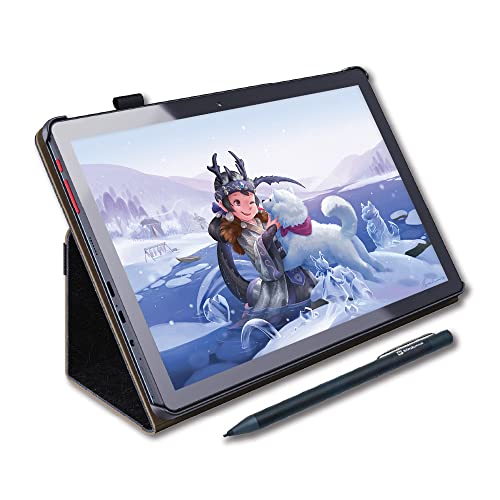
The PicassoTab X is a standout for beginners who want an all-in-one creative device. This 10-inch standalone tablet comes with a pen and a pre-installed suite of drawing and animation apps, so users can start creating right away without connecting to a computer. Inside, a capable MediaTek quad-core processor powers the device, while the IPS HD screen provides clear visuals for writing, sketching, or basic animation. Four bonus items—such as a tablet case, drawing glove, universal power adapter, and pre-installed screen protector—add value and protect your investment. The 64GB storage lets you download apps from the Play Store and keep projects locally for offline work.
The PicassoTab X is designed for beginners who appreciate simplicity and immediacy. The bundled software supports drawing, painting, and light animation, while the 10-inch screen offers a comfortable workspace without overwhelming you with a large device. Palm rejection and stylus precision help learners focus on form and technique rather than fighting with the tool. Because it operates as a self-contained unit, it’s especially well-suited for students, travelers, and artists who prefer an intuitive, portable setup. However, it may not replace a desktop workflow for more advanced illustrators who rely on desktop-grade software and plugins.
XPPen Deco 01 V3 Drawing Tablet

The XPPen Deco 01 V3 offers a large, comfortable drawing surface with 10×6 inches of active area and a highly sensitive pen. It supports up to 16,384 levels of pressure and tilt up to 60 degrees, enabling smoother shading and natural line work. The tablet is battery-free and includes eight customizable shortcut keys, making it easy for right- or left-handed users to assign frequently used tools. It also emphasizes Android compatibility, with guidance to download the XPPen Tools Android app for better mapping on mobile devices. This model is well-suited for beginners who want more nuanced control over their strokes without investing in a screen tablet.
While the Deco 01 V3 lacks an on-device screen, it rewards practice with precise pressure sensitivity and reliable performance across popular drawing programs on PC, Mac, and some Android setups. The 3-in-1 cable keeps connections tidy, and the ergonomic design helps reduce hand fatigue during longer sessions. Because it requires a computer or compatible device to display the artwork, it’s best for learners who are ready to work within desktop software ecosystems and want a larger drawing area than smaller entry-level models offer.
HUION Inspiroy H1060P Tablet

The HUION Inspiroy H1060P expands the beginner’s toolkit with a larger drawing area of 10 x 6.25 inches and a substantial array of input controls. It features 12 programmable express keys and 16 programmable soft keys, enabling learners to tailor shortcuts to their most-used tools. The tablet uses the battery-free PW100 stylus with ±60° tilt support, delivering consistent line weight as you explore shading and perspective. Its slim 10mm profile and modern design make it a practical option for students and hobbyists who want more workspace without sacrificing portability.
For beginners, the H1060P offers a balance of size, features, and price that supports growth into more complex projects. The larger active area helps with larger sketches, layout planning, or design exercises, while the keys reduce reliance on software menus. The device remains compatible with commonly used operating systems and supports a range of creative software. Potential trade-offs include its larger footprint and a steeper learning curve than ultra-compact models, but the added space and shortcut options can speed up early workflows for learners aiming to develop solid fundamentals.
GAOMON PD1161 With Screen

The GAOMON PD1161 is a full-fledged drawing tablet with an 11.6-inch full HD screen, allowing you to draw directly on the display. Its on-screen area is complemented by a battery-free stylus and tilt support, delivering a natural drawing experience with accurate pressure as you sketch, paint, or edit. The device includes 8 shortcut keys to speed up your workflow and a color gamut that aims for vibrant results on screen. It’s an excellent choice for beginners who want to see their lines directly on a display while maintaining a desktop-like workflow on a PC or Mac.
It’s important to note that the PD1161 is not a standalone tablet; it must be connected to a computer to operate. This constraint is a trade-off for a more immersive, display-based drawing experience. Beginners who want immediate visual feedback and the ability to edit with software like Photoshop or Clip Studio may find the PD1161 compelling. Its full-screen drawing experience helps learners understand proportions and composition with real-time feedback, though it requires desk space and a compatible system to use effectively.
Buying Guide: Key Considerations For Your First Graphic Tablet
- Screen vs. non-screen: Decide whether you want to draw directly on a screen (more intuitive, higher cost) or on a separate tablet that mirrors to your monitor (often cheaper and lighter). Screen tablets provide immediate visual feedback, which benefits beginners learning spatial relationships, while non-screen tablets help you build traditional drawing habits and reduce eye-hand lag on practice.
- Pen pressure and tilt: Look for tablets with at least 8,000–16,384 levels of pressure sensitivity and tilt support. Tilt capabilities help you simulate shading and brush control more realistically, an asset as you advance from basic line work to more sophisticated techniques.
- Size and portability: A 6×4 inch model suits travel and quick sketches; larger workspaces (8×12 inches or bigger) are better for detailed compositions and comfortable for longer sessions. Consider your desk space, typical projects, and whether you need a portable device for school or commuting.
- Shortcut keys and workflow: Express keys and soft keys speed up repetitive actions. Beginners benefit from keys mapped to common tasks like undo, brush size, zoom, and layer toggling, reducing reliance on software menus.
- Connectivity and compatibility: Check operating system support (Windows, macOS, Android) and whether you need a standalone device or one that requires a computer. Android compatibility opens mobile drawing options, while standalone tablets provide a self-contained learning experience.
- Display quality and color accuracy: If you choose a screen model, look for adequate resolution, brightness, and color range (NTSC or sRGB coverage) to ensure your colors and details translate well when you export artwork.
- Accessories and software: Some tablets come with pre-installed apps, gloves, or protective cases. These extras can add value, especially for beginners who want a complete setup without additional purchases.
- Upgrade path: Consider whether you might upgrade to a larger screen, more express keys, or a stylus with higher sensitivity later. A flexible option can save time and money as your skills grow.